
1. The new 'Swing' panel
2. The new 'time manipulation' facilities in the 'Order' panel
3. The new 'Nudge' buttons in most of the panels
As always with a new release of ProbablyR, don't forget to send it a MIDI note (from the keyboard emulation on a laptop, or from MIDI In), click on the 'D' default button to get a clean setup, and then save the settings using the little 'floppy disk' icon in the top right hand corner so that you get a saved .adv file in your library. Then explore the new stuff!
Oh, and I suppose that I should use my new naming scheme, so this updated device is really called: 'MIDIprobablyR 0v014'.

The Swing panel
The 'Swing' panel adds the ability to set the length of each step in the sequence in 64th note intervals. Note that ProbablyR already lets you set the length of the generated note at each step in the sequence, so the 'Swing' allows you to control the time between steps, which is somewhat unusual in step sequencers.I'm using the term 'swing' here because that seems to be the most commonly used term in the DAW industry, and I'm very aware that 'Swing', 'Shuffle', 'Groove', and 'Nudge' are all terms that can be used for similar parameters. Now, having been using the amazingly excellent Novation Circuit for the last couple of months, I have to say that 'nudge' was my first choice, but that was already taken for a completely different new feature. (Of course, these days, maybe what I should be doing, is putting a picture up on Facebook in a DAW group that asks: ''Swing', 'Shuffle', 'Groove', or 'Nudge': Which is the right word?' and waiting for comments...)

The 'Swing' panel is the slightly purply, dark blue one (not the re-coloured teal one for 'Note Length' that used to be 'the dark blue one') on the far right of ProbablyR, and uses the same probabilistic grid that I have been using for all of the major control functionality in the Probably series. (Time usually goes horizontally, each white cell vertically is selected at random.) So, yes, the horizontal axis is time: 18 steps maximum in this version (the UI is holding me up for more steps...), whilst the vertical axis sets the number of 64th notes between each step, with fastest (1/64th) at the top of the panel, and the slowest (64/64ths) at the bottom of the panel.
Now, following my usual trend of not doing things in the conventional way, the 'swing' control presented here is rather different to the more usual percentage value from 50% (Straight or 'even' timing, where, for example, every 16th note is the same time after the preceding note - so they are evenly spaced in time) to 70%, or even 85% (Not straight timing at all, but 'swing'-timing, where (typically = there are variations!) each second note is moved in time so that it is not the same time after the preceding note as that preceding note was for the one before that.) Instead, the probability grid allows you to set the thing of any of the 16th notes backwards or forwards in increments of 1/64th notes. In the Ableton Live manual, they describe 'groove' in terms of having a piece of elastic for the timing, instead of a fixed metronomic grid. So in ProbablyR, the probability grid provides exactly that sort of timing flexibility, but it also allows probabilistic control, so the swing is not necessarily the same for each note, or each bar, or each repetition... Now this is quite an unusual ability, even these days, unless you have ever programmed something like a Roland MC500. (where each note's timing can be controlled individually!)

 |
| First half fast (so middle note is early), and second half slow - on average! |
So what happens when we add a white cell to the default row of '4'? Well, in step 1, the length of the step will be either 3/64ths of a note, or 4/64ths of a note. Each of these will happen half of the time, but randomly - so it won't be 3 followed by 4 followed by 3 followed by 4 each time, it could be more like: 3, 4, 4, 3, 3, 3, 4, 3, 3, 4, 4, 4... but where the 3s and 4s are randomly distributed over time. If you listen for 3 minutes and count them, then each of the counts would be pretty close to being half of the total number. It's a bit like tossing a coin: long-term, it will land on 'heads' 50% of the time, but this doesn't mean that if you get 10 heads in a row the next toss will have to be tails ('to even things out' is what people tend to say). Nope, each and every time that you toss the coin it will give heads or tails independently of the previous tosses, which is why the long-term results are going to be very close to 50% heads, 50% tails. (I am aware that it is possible, with practice, for people to deliver heads or tails on demand, but I'm assuming here that the people tossing the coins are not trained specialists at coin tossing! Or dice throwers, or whatever other 'random choice' mechanism you care to use...)
The step in the middle is going to be either 4/64ths or 5/64ths of a note, so this is slightly longer in time. So the two white cells alter the 'elastic' timing of the step sequence so that the first half of the bar is up to 1/64th note faster, while the second half is slower by up to 1/64th of a note. I write 'up to' because the grid is probabilistic, and so the two white cells in a vertical column mean that the average speed-up or slow-down will be half of 1/64th note (1/128th note). In the UI, white cells above the '4' row make things go faster, whilst white cells below the '4' row make things run slower.
I'm going to stop talking about probability right here, because this is sounding increasingly like a TED talk!
Anyway, back to music and the 'elastic' time concept. The 'Swing' grid allows you to assign any time interval for each of the steps - from 1/64th to 16/64ths (which is a 1/4 (quarter) note). Now if you set all of the notes to 1/64th notes then the whole grid is going to take 16/64ths of a note for all 16 steps (assuming we are using the 16 steps per grid default setting), which is 1/4 of a note - so the whole grid runs at 4x speed and what should be a whole note plays in a quarter note's time. At the opposite extreme, setting all of the steps to 16/64ths gives 1/4 notes per step, and 16x 1/4 notes is 4 whole notes, so the grid runs at 1/4 speed. Okay, so the grid runs faster or slower, but the bars are still in time. Unfortunately, these are ideal cases...
Suppose we leave all of the white cells in the Swing grid in the default '4' position (4/64ths = 1/16th notes, one for each of the 16 steps in a 16 step sequence), except for one. Let's make that 3/64ths, which is 1/64th shorter in time. The whole grid will now take 63/64ths of a whole note to play, which means that it jumps forward in time by one step for each repetition (and so it is not in sync), and after 64 bars we will be back in sync again. Whilst this can be useful for polyrhythms, it would be nice if there was a way of knowing when the Swing grid is going to take the sequence out of sync with
Live's transport, and that is what the large number on the right hand side of the grid is used to indicate (for a 16-step sequence, it will be showing '64' when we are in sync) - the number just above the black box with a 'G' or '4' in it. When the '64' is green, then ProbablyR is going to be playing at the same speed as Live's transport - and don't forget you can always click the Grey "Resync' circle button in the 'Memory' panel if you need to get ProbablyR back in sync with Live. But when the number shows anything other than '64' in red (in the example described just now, it would be showing '63'), then you can immediately see that ProbablyR is going to be slipping or dragging in time. So the number going green is something to look out for if you want to have ProbablyR running in sync.
 |
| First quarter of the bar is fast, the second quarter is slow, the third quarter is fast again, and the fourth quarter is slow again - on average. |
When you edit the Swing grid live, you will find that the number goes red or green depending on where the white cells are, and it is easy to get out of sync. To enable you to edit the grid and not lose sync, there's a special button that enables you to make changes in the background, check that they add up to '64' (for a 16 step sequence) when the number goes green, and then apply the new swing all at once. It is the 'G'/'4' black box - when you click on it so that it shows '4', then the default 4/64ths '4' setting of swing will be applied to the whole grid, regardless of what the grid actually shows. So you can click and put/remove white cells and check that you get a green number, and then click on the '4' in the black box so that it changes to 'G', and now the Grid will be active and you will get the swing settings that you have chosen applied to the grid step timing. You may need to practice this so that the process of
[ '4', then edit the grid, then check for green, then 'G' to Go with the Grid ]
is fixed in your mind (and fingers), and you will be able to change the swing during live performance without losing sync. If you have seen the fist ProbablyR video then you may not have noticed that it is a live recording and that I never stopped ProbablyR running - it just plays the whole time, live. Well, the 'G/4' button is designed to enable you to make changes to the swing whilst ProbablyR is running and in sync with Live.
 |
| Putting a speed-up just after the first note in the bar, then a slow-down just before the middle beat, then a speed-up for the third beat, and a slow-down at the end of the bar |
Of course, if you do not want to stay in sync, then go for red numbers and don't bother with the 'G/4' button! I'm hoping that some people will do this live, so please let me know if you are using ProbablyR 0v14 in this way! There is another feature for people who want to do 'off sync', and this is the smaller number just lower down from the black 'G/4' box - this number shows the running average number of steps that ProbablyR has played over the last few repetitions. So if you set the 63/64ths swing grid from earlier, then this will go from 64.0 to 63.0, going through 63.9, 63.8... etc. on the way. And if you go back to 64/64ths (or click on the 'G' black box - just reminding you!), then this 'running average' will gradually go back to 64.0. This is intended to give the performer who wants to go 'off sync' a way to see when they are back in time with Live's transport, or maybe when they need to click the grey 'Resync' circle in the Memory panel to get properly back in sync. With a little practice, you can be in complete control of where ProbablyR is in relation to Live's transport.
 |
| Editing the Swing grid whilst the '4' button is active - so the timing is even across the whole bar. |
 |
| Once the 'G' button is shown, the timing variation is alive. Here the middle beat is late by 1/64th of a note, and the rest of the bar is slightly faster to compensate. Note that there are no vertical columns with two white cells, so this timing is always constant and the sequencer should stay in sync... |
The 'Time Manipulation' facilities in the 'Order' panel
The 'Order' grid sets the order in which all of the other panels happen, and the default is just the lower left-to-upper-right diagonal, which gives the 'linear' time that you expect. The first step is followed by the second step, then the third, and so on (the cursor lines move from left to right across the panels). If you click on the '-1' button, then you get the opposite diagonal (upper left to lower right) and now time runs backwards in the panels - the cursor lines go from right to left!
Now, whilst you can do a lot with the Order panel, it often requires lots of clicking to clear and set white cells, and so the first new feature is the 'Inc' control number. This sets the number of steps that the sequencer advances across the grid for each step - known as the 'Increment'. Previously this was fixed at 1, and so the default diagonal meant that the cursor moved from left to right one cell at a time. Editing the grid to change the diagonal is possible, but the 'Inc' increment button makes it very quick and easy to change the number of steps. The default is 1, as expected, but if you set it to 2 then the Order grid cursor will jump across the grid two cells at a time, and so the grid takes half the time to complete, assuming that you are using the default 16 steps per bar for the Order grid. But the interesting setting is 3, because now the cursor jumps from cell 0 to 3, then to 6, 9, 12, 15, and then to cell 2, then 5, and ending up at 14, followed by cell 1, then across again, and finally back to cell 0. So the cursor scans across the grid three times, and ends up where it started (assuming 16 steps is set!). Setting Inc to 4 goes across very fast, but 5 is another 'multiple scans for a complete bar', and all of the odd numbers do the same re-ordering of the notes in the Pitch panel, when you have 16 steps set. So why did I include the odd numbers?
Okay, the even numbers are there for when you use an odd number of steps: 15 is a good starting point. You need to change the 'Max' control number to '15' - it will no longer be green (assuming you have the Steps selector in the 'Length' panel is set to 16). The Order grid is now only 15 steps across, and so if you use an Increment (inc) setting of 2, then you now get two scans across the grid for one bar. Now, whilst the Order grid is 15 steps long, assuming that you have left the Steps pop-up menu at 16 (the default), then all the other grids will still be 16 steps long - but only the first 15 of them will now be available to the Order grid. So the Order grid will scan back and forth (depending on the Inc value) and the cursors in the other grids will follow along, but step 16 will never be reached. If you want to use step 16 then you set the 'Min' control number to 2, and Max to 16, and now the Order grid will scan from step 2 to step 16.
In other words, the Max and Min control numbers set the width of the Order grid, and this can be anywhere from 2 cels to 16 cells (as set by the 'Steps' pop-up menu in the 'Length' panel. This allows you to set up several different orders in the Order grid, and choose them by setting the Max and Min control numbers, or control the scanning across the Order grid by using the Inc control number. And I haven't mentioned that the Order grid is probabilistic yet, so that makes things even more interesting. Basically, my recommendation is that you should proceed in this way in order to get familiar with what the new features can do:
1. Play with the Order grid with the default settings of Inc=1, Min=1 and Max =16 using one white cell per vertical column.
2. Then try two or more white cells per vertical column.
3. Then try the 'Inc' increment control number.
4. Then use the 'Max' and 'Min' control numbers to choose a part of the Order grid to control the same part of the other grids. Yes, with Inc=1 and Min and Max set not to overlap, then a basic setup might have two 8 step sequencers on two different Memory slots, or four 4 step sequences, or even two 5 step sequences and an 8 step sequence (with the 'Steps' pop-up menu in the Length panel set to 18 steps). And when you have all of these sub-sequences set-up, then don't forget that the 'Inc' control number will allow you to quickly change the order that the grid plays, or changing Min or Max will change the boundaries of the sub-sequences, and you can overlap them if you want. There's a lot to explore here!
The 'Nudge' buttons
The Order, Probability, Velocity and Length panels all gain four new buttons plus some associated control numbers, whilst the Pitch and Octave panels both gain two extra buttons. The buttons are Nudge buttons for the grids, and they allow you to move the contents of the grid up, down, left or right. For the Pitch grid this means that you can either use notes in a Clip to control the transposition, or you can do it live using the Up/Down Nudge buttons, or store the nudged grid in a Memory slot. For the Octave grid it speeds up choosing the range of the instrument sound.


But the real fun is the Nudge control numbers. These automatically click the associated Nudge buttons according to the number in them. The default '1' setting doesn't do anything, but if you set the left nudge control number to 16 (and the steps are set to 16...) then the grid will scroll to the left by one cell each 16 steps (each bar). So if you have a probability grid or velocity grid or length grid that is controlling which notes are playing and how they are being articulated, then you can move these independently in time.
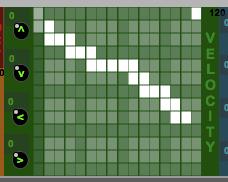
I like to have a velocity grid with an up and down wiggle and set to be nudged 1 step less than the number of steps in the bar, so that the grid moves horizontally, but each note gets a different value for 16 bars, and then it repeats. (You can hear this happening on the demo on SoundCloud). If you want, you can set more than one Nudge control number, and then the grids will slide about all over the place. There's huge amounts of control to explore here! (And you can always add more automation using Live's internal facilities as well, of course!)

I like to have a velocity grid with an up and down wiggle and set to be nudged 1 step less than the number of steps in the bar, so that the grid moves horizontally, but each note gets a different value for 16 bars, and then it repeats. (You can hear this happening on the demo on SoundCloud). If you want, you can set more than one Nudge control number, and then the grids will slide about all over the place. There's huge amounts of control to explore here! (And you can always add more automation using Live's internal facilities as well, of course!)
SoundCloud demo
I'm working on a video, but that takes a long time, so, in the meantime, there's a demo up now on SoundCloud. This is a live recording of a single instance of ProbablyR, plus a drum pattern, and has too much reverb on it. (But it IS a demo, and they always have too much reverb, so that's how you know it is a demo!) The demo has velocity nudging, swing time manipulation, and uses the modulo scanning of the Order grid to give interesting variations of the note pool in the Pitch grid. Hopefully, if I've done it well enough, it should sound like someone improvising on the Marimba, and they are slightly imperfect in their timing... But it isn't anything like that, of course. It is produced by one of those 'boring, static step sequencers that monotonously repeats exactly the same notes...,' except that ProbablyR isn't that kind of sequencer. Not at all.
Enjoy!
Documentation for Probably
The MIDIprobablyR(S,Z...) series is getting to the point where it needs a proper manual, but this may take some time, so, in the meantime, here are links to all of the blog posts covering the various versions of the Probably step sequencer. (and related devices)
The Probably... step sequencer
Probably was the first (and simplest) of the 'Probably' series of step sequencers. This blog post is a good place to start.
Probably blog post The first in the series (four grids, limited panel colouring)
ProbablyZ blog post The second iteration (added the time-warping 'Order grid/panel)
ProbablyS blog post The third iteration (added the sub-sequencer 'Memory' grid/panel)
ProbablyR 0v11 blog post The fourth iteration (added 16 step sub-sea, warp fills, and Step length)
ProbablyR 0v14 blog post This post! The fifth iteration (added 'Swing' panel and 'Nudge' buttons)
After Probably, there were some other devices that added extra letters to the end. The 'step sequencer' series adds a single letter: S, Z, R - the other devices add more than one letter. The release sequence for 'Probably the step sequencer' is: Probably, then ProbablyZ, then ProbablyS, then ProbablyR (current).
ProbablyLFO blog post Outputs probabilistic (variable) waveforms
ProbablyLFO blog post2 Extra asynchronous additions... ('swing-like?') On maxforlive.com
ProbablyGEN blog post A poly-rhythmic drum sequencer, plus...
ProbablyGEN blog post2 Extra asynchronous additions... On maxforlive.com
ProbablyCHORD blog post Probabilistic chord generator ('Sergeant...') On maxforlive.com
ProbablyCHORD blog post2 - coming soon!
There's now a 'coffee-book' illustrated version of this section in a separate new blog post:
Probably documentation
There's now a 'coffee-book' illustrated version of this section in a separate new blog post:
Probably documentation
Hardware Sequencing
If you make hardware sequencers and are busy taking notes from this blog as potential ideas for your next release, then perhaps we should talk. I would love to help someone make a proper advanced hardware sequencer that goes 'beyond' the current 'state of the art', and hopefully ProbablyR (and the other M4L devices in the Probably series) vividly illustrate that I may be useful to you.


Getting MIDIprobablyR 0v014
You can get MIDIprobablyR on http://www.maxforlive.com/library/device/5529/midiprobablyrHere are the instructions for what to do with the .amxd file that you download from MaxforLive.com:
https://synthesizerwriter.blogspot.co.uk/2017/12/where-do-i-put-downloaded-amxd.html
(In Live 10, you can also just double-click on the .amxd file, but this puts the device in the same folder as all of the factory devices...)
Oh, yes, and sometimes last-minute fixes do get added, which is why sometimes the blog post is behind the version number of MaxForLive.com...




 Posts
Posts

