Showing posts with label Echo. Show all posts

Saturday, 27 October 2018

Flamming, Fluttering and just plain echoes...

Lots of other people have already noted the 'slightly less immediately obvious' devices inside the Ableton Live 'Max For Live Essentials' pack (for Live9!), but there is often an interesting alternative angle, and that's where I come in. In particular, Note Echo caught my eye, because it is a MIDI-domain echo, and it is programmed in MaxForLive...

Here's what I'm working towards in this post:


But first, some more background... 

Note Echo looks very similar to the long-established, factory default 'Audio Effect' called 'Simple Delay', but instead of processing in the audio domain, it processes the MIDI messages that control the production of the audio itself. So instead of having an Instrument produce a note that then gets echoed, Note Echo gets the Instrument to play several notes, delayed in time. So the echo happens before the audio is produced (which makes me think of the amazing fictional substance called thiotimoline...). 

Sometime during my Live9 to Live 10 updates, I got two versions of Note Echo. (Notice that the two Note Echo devices are MIDI Effects, so they go BEFORE the Instrument, whereas Simple Delay is an Audio Effect, and so goes AFTER the Instrument):


Producing echoes in the MIDI-domain enables some interesting special effects that aren't easy to achieve in the audio domain. The 'Feed Delay' rotary control in Note Echo allows you to control the amount of the incoming note's velocity parameter that is used in the delay section, and if timbre is influenced by velocity, then this means that the echoes that are produced are going to sound different depending on the velocity! In the audio domain, then an echo can merely work with whatever audio it receives at its input, but Note Echo transcends that limitation. I often program lots of velocity sensitivity into my sounds, and so I tried a few of my more extreme DX7 FM sounds that use velocity to make radical changes to the timbre, and these sounded really interesting when driven by Note Echo.

Another advantage of doing delay in the MIDI-domain is that you can control precisely what it is applied to. A few edits (Note Echo is programmed in MaxForLive) later, and I had a stripped down version of Note Echo that only affects a single MIDI note and had the pitch shift removed. After adding an LFO and a control mapper, I had an M4L device that does flutter echoes, but only on a single chosen MIDI note number. Now, you could use a separate track with just a single note on it, and process that using 'Simple Delay', but having a purpose-built device that works on an ordinary track is much quicker and more convenient, and I quite like both of those features!

My grateful thanks go to Ableton and Cycling '74 for Live and Max For Live - having example devices like Note Echo are a great inspiration for further exploration, and the ability to extend/enhance/tweak existing devices is wonderful!

Drum Flammer - as shown up at the top of this post!

What I found my quickly-hacked-together device very good for was producing 'flams', something which I hadn't really used since back in the 1990s, when drum machines first started to have enough polyphony to allow clusters of time-overlapping sounds.  Back then I used to create flams by manually editing MIDI Notes to give notes that rapidly repeated, in a brute-force approximation of the drumming technique where the name 'flam' comes from - which is kind of a cue for some of the flam rudiments...


There's quite a lot going on in that user interface, so here's the same thing split out into the major sections:


As you can see, the left hand side is very similar to the source M4L device, Note Echo. I have added the lower set of electors, which control the range of time change that the LFO can make, plus at the very top, there is the incoming MIDI note number indicator (on the left), then a 'Copy' button, and then the 'Note Selector' (with the blue triangle) that lets you choose which note will be echoed. The 'Copy' button just lets you set the chosen MIDI note number to be the one that is being displayed. So you just play a MIDI controller or keyboard to send the appropriate MIDI Note On message, and then click on the 'Copy' button. (I first used the technique in my MIDIQuantCC controller quantiser... But this was for MIDI Controller numbers, of course!)

The middle section is the LFO. Having produced some wild and totally-over-the-top LFOs recently ( example 1, example 2 ), this one is rather ordinary by comparison. Perhaps the only feature of note is the 'Random' waveform, where I haven't used the traditional Sample-and-Hold waveform, but instead I have used a rate-multiplied piecewise-linear waveform that seems to give good results in this application (and now that I have it done and dusted, I may well use it when I next revisit my other LFOs...).

The right hand side is just the standard parameter mapping controls that I have gradually been adding to my devices. It allows you to use the LFO to control the internals of the device itself, AND to control another parameter somewhere else in Live. This can be very useful for all sorts of interesting and unusual effects.

User Tips

For flams, turn the Offset rotary control (in the middle of the device) almost all the way anti-clockwise ( the shortest times) and set the time buttons on the left to '1'. Use a little bit of LFO Depth to give some movement to the sound, and set the two feedback rotary controls as far clock-wise as you dare. You will find that Drum Flammer can eat up processing power, so you may find that little bar in the upper right hand corner of Ableton Live is higher than you normally see!  

For flutter echoes, then higher values of Offset and the time buttons will suffice. Even slower times will give echoes, but without many of the artefacts that you normally associate with delays. I have to say that Note Echo is a wonderful device, and well worth the processing power that it can consume sometimes - and Drum Flammer is slightly more specialised, but I love the way it can add all sorts of unexpected variability to sounds.

Despite the name, Drum Flammer can also be used for non-drum sounds! There's an example on my SoundCloud pages that very eloquently shows how you can bury an interesting sound in way too much echo... Blame it on my formative years being spent adding too much reverb to synths. 

The best tip is to get familiar with Ableton's 'Note Echo' device first. It can do some very cool effects on its own. Me, I just like to go that little bit further...

Examples

Here are links to two SoundCloud examples of Drum Flammer in action.


Coming Up

Yes, there's a typo in the UI. I will fix it in the next update. 

Getting Drum_Flammer_mr_0v01

You can download Drum_Flammer_mr_0v01 for free from MaxForLive.com.

Here are the instructions for what to do with the .amxd file that you download from MaxforLive.com:

     https://synthesizerwriter.blogspot.co.uk/2017/12/where-do-i-put-downloaded-amxd.html

(In Live 10, you can also just double-click on the .amxd file, but this puts the device in the same folder as all of the factory devices...)

Modular Equivalents

In terms of modular equivalents, then reproducing this functionality in my modulars just required the sort of MIDI note mapping to 'round-robin' synth 'voices' that is quite widely available, plus a digital delay, an LFO, and the usual Utility modules. Overall, the core is about 4 ME, but that flamming is going to eat up synth voice modules, so you would need to add 1 ME for a simplistic synth voice module per overlapping flam note... At a minimum, that would be 2 extra ME, making 6 ME in total.


Monday, 8 August 2016

Free Max For Live M4L Packs from SynthesizerWriter

Here is a summary of my latest free MaxForLive 'Echo' effects. As usual, these are all available from MaxForLive.com via the 'Download' buttons in each of the boxes below.

Max for Live
Missing Echo dark

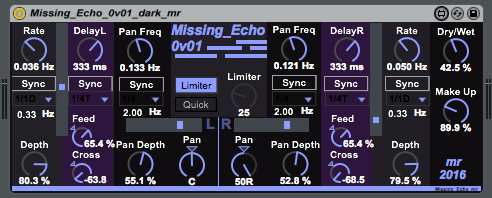
This echo puts an LFO inside the feedback loop, so the number of echoes changes over time.

F R E E

Download
Max for Live
Field Echo dark

This two-stage echo enables you to place echoes in the stereo image: a very 'musical' echo.

F R E E

Download
Max for Live
Field Echo

This two-stage echo enables you to place echoes in the stereo image: a very 'musical' echo.

F R E E

Download
Max for Live
Delay Delay Echo

Delay Delay is a simple echo with two sections. This is the most basic of my echoes, and my first!

F R E E

Download

Max for Live
SpecD

SpecD is a stereo dual-stage pitch-shift/chorus echo, and the 'dark' version of the DDFS echo.

F R E E

Download
Max for Live
DDFS

This echo adds frequency shifting inside the feedback loop, hence: Delay Delay Frequency Shift.

F R E E

Download
Max for Live
Rnd Echo dark

This echo provides echo times controlled by random noise... Not your ordinary echo effect at all!

F R E E

Download
Max for Live
Pan Echo

This echo provides auto-panning of the echo outputs, and so livens up the stereo image.

F R E E

Download

These echo effects provide a snapshot of my MaxForLive programming: Delay Delay Echo is a very early 'learning' project, DDFS adds frequency shifting, and SpecD is an experiment to see if 'dark' effects are more popular (and if using something reminiscent of a 1970s Japan naming scheme makes the effect more appealing!). Pan Echo starts to explore what you can do with auto-panning of echoes, whilst Field Echo explores static stereo fields.

Note that whilst there are four 'dark' and four 'ordinary' effects here, both colour variants are not always available - Rnd Echo and Missing Echo are only available in 'dark'.

Finally, two echoes that explore more unusual areas: Rnd Echo provides random echo delay times, whilst Missing Echo lets an LFO control the feedback inside the delays. The experimental nature of these last two means that they will probably be extended, or a new variant will be added at some stage. Maybe eventually I will produce a dual delay with frequency shifting, auto-pan, stereo field, random delay times and LFO controlled feedback...

Sunday, 24 July 2016

Altering parameters inside an Echo Effect...

In several of my MaxForLive effects, I have examined what happens if you modulate a parameter that is normally not associated with that type of control. So there's a Limiter with an LFO, an Echo effect where the modulation of time is derived from Random Noise, and my most recent effect, 'Missing Echo' allows the feedback inside a delay line to be altered by an LFO.
You can do this manually, and there's a number of performance techniques based on this general principle. I've covered this before in my 'Dopplator' effect, but that was based on a rounded pulse as the LFO waveform, and didn't have any panning facilities. 'Missing Echo' is much more in the mainstream sequence of my effects, and so has dual syncable independent LFOs for panning, plus a Limiter to keep things under control if you require it, and dual syncable independent delay lines, as well as dual syncable independent LFOs to modulate the feedback. Yes, this is a lot of LFOs, but those always were the modules I ran out of first when I used to play with modular synths...
The LFO modulates the feedback in a slightly different way to the way that you might expect, and I'm still exploring things to find the optimum method. The current version first sweeps from zero feedback to the modulation setting for in-channel feedback and then back, and then sweeps from zero feedback to the modulation setting for the other-channel and then back to zero. So you get one half cycle of ordinary echo, followed by one half cycle of ping-pong echo, with all of the stereo imaging that you would expect from this arrangement. Add in the stereo auto-panning, and there's a lot that can be going on in that stereo image - if you want! As I said, I'm still trying to find the best way of controlling this, and a later version may add more facilities...

 'Missing Echo' can be downloaded from MaxForLive.com

 Because I have several different variations on the Echo effect available (from www.maxforlive.com) then I'm going to be adding a special easy selection page soon, so that it is easier to browse through the different variants on the echo effect that I have produced.

Sunday, 8 May 2016

A different type of echo effect...

I have always liked echo, from my very early 'wannabe Space Echo' days with merely a guitar and a customised Melos 'tape cartridge' echo box, through to the wonderfully bouncy 'Ping Pong Echo' in Ableton Live. But I've also always wanted more from my echoes, and I have done lots of exploring to try and find that itchy place that needs scratching, and I have got close sometimes - look at MaxForLive.com for a host of experiments with echoes. Random time delays was one of my more recent investigations, and the lack of structure was what got me thinking about a very different approach.

Turning an idea into reality sometimes clicks quickly and easily, and sometimes it just turns into treacle and everything goes slow-mo. This one didn't go well, and I spent rather longer than I ever intended getting the details correct. But I eventually got my head around it, and managed to get the Max4Live working more or less as I wanted - although as you will see, the 'Auto' function still needs some work. So what sort of echo is this latest one?

Field Echo


'Field Echo' is named after my intention to do something more with stereo echoes that just bounce them round from channel to channel. Fun though that is, real world echoes work 'inside and as part of' the sound field, and don't have ''channels, and that's why I made this new experimental echo effect.


Field echo has two stereo delays in series, but the feedback is separated into 'same channel' feedback and 'other channel' feedback (ping-pong). The two feedback channels also provide two outputs per stereo delay, and these outputs can be panned anywhere in the stereo stage. The layout is exactly as you might expect, and I've mixed the left/right channel metaphor a bit, but I think it works.


The best way to find out about it is to use it, so here are some hints and tips about what to explore.

1. Similar but slightly different times for all the four delays is a good starting point, and panning the L and R 'same channel' outputs mid-way towards left and right, and the 'other channel' LD ping-pong outputs hard left an right. This gives a big, bold stereo echo, and a good starting point for further exploration.

2. Try breaking the rules and distributing the L and R outputs to the Left, and distributing the LD and LR outputs over to the Right (Remember that the intention is to create stereo imagery, not hard left and right walls of echoes). You should find that you get interesting haloes rather than the hard brittle echoes that you might be used to. Try tweaking the delay times, and when you increase the delay in the first section, try reducing the time in the second. You should use extreme caution when using this type of setting with Marimbas or other physical percussion  instruments, because you may find that hours slip by without you noticing!


3. Try the 'Auto' control for amy first attempt at making the 'up a it, down a bit to compensate' process a bit faster. I ha problems with the maths inside Max, and so this is isn't perfect, but it is still interesting, and there's now only only delay time control to play with. Note that you can set negative times, but the delay lines don't know what to do with them! In the next version I will window the time delays to real values.

As I now do with all my M4L, there is also a 'dark' version.


I hope you find Field Echo an interesting diversion for a while, and you may even find it useful. As always, you can find it on MaxForLive.com (dark) or MaxForLive.com (light).


Sunday, 19 July 2015

A surprise from history!

In my last blog post I mentioned PanEcho, a Max For Live plug-in that I wrote back in 2011, but I didn't check my page on maxforlive.com to make sure that PanEcho was there...

You can guess what I found when I did check! Yep, it turns out that PanEcho was one of those bits of  programming that never made it into the real world, and had been sitting in my 'dev' area, gathering dust...

So, rather than simply rework it into a more modern context, I tried it out 'as is', and discovered that the stylistic changes over the last 4 years are interesting (tighter spacing of controls, different layout of Left/Right channels, more graphics to indicate status of LFOs, more technical detail, no abstractions, etc...), but that the jump back in time was actually informative, and it was still a usable effect! So I've now uploaded PanEcho to maxforlive.com so that it can be tried out by a wider audience!


PanEcho isn't a completely conventional echo effect. There are two independent stereo delay sections, each with feedback (in the same channel) and cross-feedback (to the other channel L->R, R->L), and then there is a master feedback and cross-feedback around both delays. You can also swap the channel outputs for the first stereo delay if you want, by using the 'Normal/Swap' button. With all of this channel flexibility and feedback, things can get complex, so there are indicators which light up 'red' when the controls exceed 100% and you get an indication of when runaway is going to happen. At this stage I didn't include a limiter in the output section of my plug-ins, and so if the feedback does get out of control, then you can get some loud outputs.

Inside the delay sections, there are stereo chorus/pitch-shift effects, so that the echoes have a bit of variation. There are several ways to do this - the most obvious being that you modulate the delay time slightly... But here I added the chorus/pitch-shift as a separate effect, partly because it allows you a bit more flexibility and it removes the need for a separate depth control.

The pan section shows how much things have moved on over time. The controls don't exactly make using the LFO-driven panner easy to use! Actually there are two LFOs: one modulates the frequency of the other, and you get separate control over the pan position (Phase) and the depth of auto-pannng (Depth). The 'Mode' button alters how the panning happens, and the 'No-Pan/Pan' button isn't exactly obvious at first sight. In my more recent plug-ins, I've changed the layout, controls and indicators for the output panning considerably, so this bit is very much a trip into history.

Download PanEcho from maxforlive.com

Suprisingly...

Whilst I was preparing the screen shot (above) for maxforlive (and here), I wondered what it would look like inverted. I've been gradually moving over the the fashionable 'dark' look that M4L plug-ins seem to get these days, and these have a light on dark background look, plus a blue highlight colour. I'm not sure what my intention was - I just thought I'd try it out and see what it looked like. (Many of my best discoveries come from simple 'what if' explorations, so I tend to do it a lot!) What I got surprised me:


Surprised? I was! It turns out that the basic 'dark' look is a modified version of a simple inversion of the original default Ableton colour scheme. Inverting the image turns a 2011 'early M4L' plug-in into something that appears much more up-to-date, way more appealing in some ways, and the layout looks okay as well. Possibly the easiest and most stunning makeover I've seen in quite a while...

As an experiment, I'm going to add both versions onto maxforlive.com and see which one is more popular...

Related articles